

At a glance
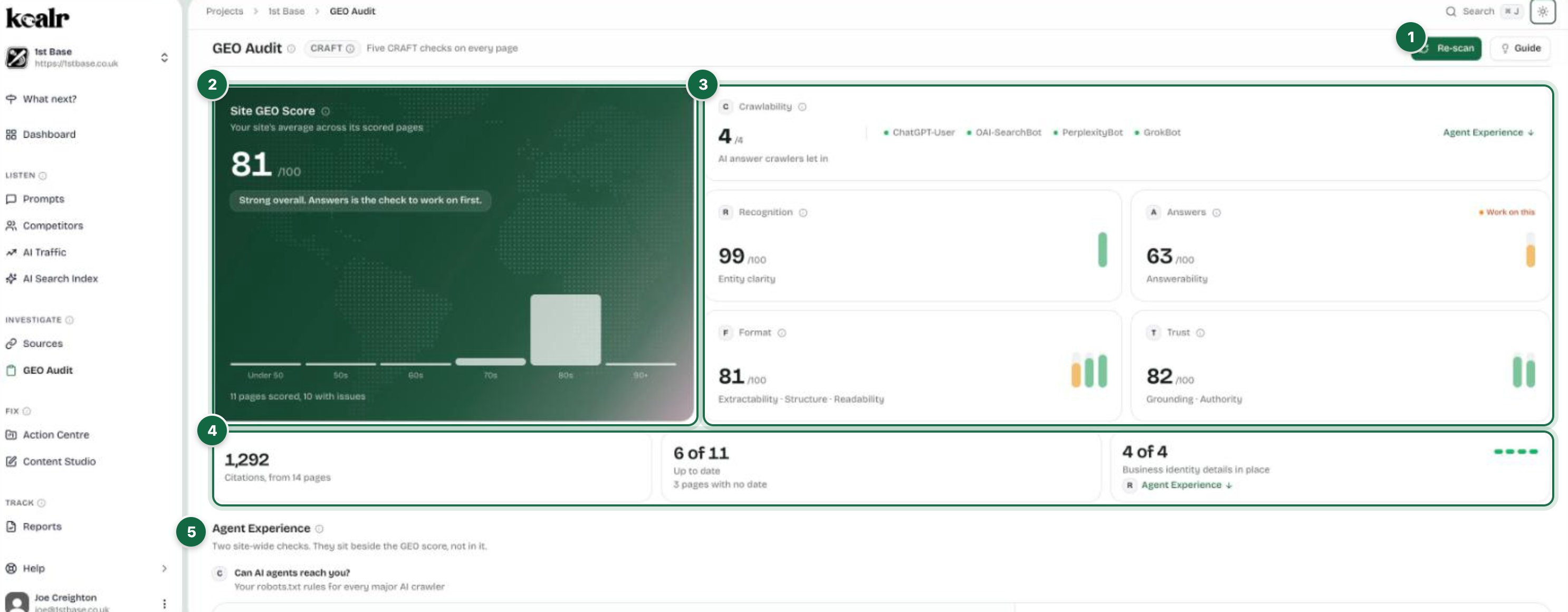
- Re-scan runs the audit again across the whole site
- Site GEO Score, the score within reach, and what each fix adds
- The five CRAFT checks: Crawlability across the top, then Recognition, Answers, Format and Trust
- The fixes, ranked by what they add
- Pages, as a table or a heatmap, with Add a page URL to audit and Scan Page beside the heading
- The Agent Experience tab: can AI agents reach you, and can they tell who you are
Site GEO Score
The panel at the top is your site’s average GEO score, out of 100, across the pages Koalr has scored. It is the same score each page carries in the Pages table and the score Content Studio gives a draft, so a page, a draft and the whole site read on one scale. Pages you have marked not optimised are left out. Beside the score is the score within reach: where your site would land if you made the five fixes at the top of the fix list. The line under it gives the verdict (Strong overall, Needs work overall or Weak overall) and says how many of those fixes come from your page template (the layout every page shares), where one change covers most of your pages. The bar on the right starts at today’s score and adds one numbered segment per fix, matching the numbers in the fix list, with a diamond where the typical page AI cites sits. Open a fix and its segment lights up. Under the score, one line carries the site’s facts: how many pages were scored, how many times AI has cited your pages, how many dated pages are up to date, and how many of the four business identity details your homepage carries, with a link to the block.The score says how well a page is built to be quoted. It is not a prediction that AI will cite it. Whether AI actually cites and names you is measured on every run: see Sources and Prompt Visibility Rate.
The five CRAFT checks
Beside the score sit the five things AI checks before it quotes a page. Hover any letter for what the check means, how much it tends to matter (Gate, Strong, Moderate or Light) and whether it moves mentions (AI naming your brand) or citations (AI linking to your pages). Click a letter to open the Koalr Framework, which walks through CRAFT alongside the rest of the framework.
Recognition, Answers, Format and Trust each show a score out of 100 for the site, averaged across your scored pages, a bar for each category behind it, and how much their fixes would add to your score. The Site GEO Score is built from these four: Answers counts the most, then Trust and Format, and Recognition the least. That is why the check with the lowest number is not always the one with the most to gain: the tile with the most to gain carries the Most to gain mark. Click a tile to see only its fixes in the list below and to light its column in the Pages table; click it again to see every fix. Recognition’s tile is the on-site half of the check, whether your pages name the people, places and products they are about; whether the rest of the web talks about you is the Earned Mentions work in the Action Centre.
Crawlability is checked once for the whole site rather than page by page, so it sits beside the score rather than inside it. Its tile shows how many of the AI answer crawlers your robots.txt lets in, and clicking it opens the Agent Experience tab. When an answer crawler is blocked, the tile is marked Fix first and the fix list opens with it, because nothing on a page matters to an engine whose crawler cannot reach it.
What to fix, in order
The fix list ranks the fixes by how much each would add to your Site GEO Score. Each row says what to do, shows the evidence on one of your pages, marks the pages it touches (red where it adds the most, amber where it adds a little) and shows what it is worth: the points it would add to your Site GEO Score. Point at the number, or tap it on a phone, to see your score today and about where the fix would take it. Where AI platforms look for what a fix is about, their logos sit under it: ChatGPT and Gemini look for this. A fix marked Same on N pages falls short the same way on most of your pages. Open it to see whether one change to your page template covers them all, or whether it is the same edit on each page. Open a fix and it leads with what to do:- How to fix it: up to three steps, in plain words. When your page template causes the gap, the one change to make there comes first. Some fixes show an example of the change done well, and each ends with a line on why it matters.
- Where to make it: how many pages the fix touches and the three where it adds most, with a button that shows the rest. Click a page for its detail view. Underneath, it shows what the fix adds to each page.
- See it on the heatmap: jumps to the same check across every page.
Pages
Every crawled page, as a Table or a Heatmap. Switch with the control beside the Pages heading; Koalr remembers your choice on this browser.Table
Each page with its score, its score on R, A, F and T in the heatmap’s colours, the score the top fixes could take it to (Could reach), which of the numbered fixes apply to it (Fixes that apply), how often AI has cited it, and its freshness. A red or amber dot on a check means there is work to do there: hover it for the fixes behind it. When a fix is open in the list above, its check’s column lights up, its number is filled in on every page it touches, and the pages it does not touch fade. Freshness is the date the page was last updated. Pages about things that change, such as prices, events and rankings, read Current, Due a review or Out of date; other pages show the date alone, and a cited page that has gone a long time without an update reads Worth a review. Rows are grouped by score band, the pages with the most to gain first, with pages that could not be scored in their own group.Heatmap
Every scored page against every check, weakest page first, with each check’s average across your site. A pink column is a gap on most of your pages; a single pink cell is a one-page fix. CRAFT checks shows the seven categories behind Recognition, Answers, Format and Trust; What is behind them shows the individual checks the fixes are made of. Click any cell to see what sits behind it: the checks on that page with where each stands, and whether the same gap shows on other pages. Go to fix takes you to the fix that covers it, and Open page to the page’s detail view. The fix open in the list outlines its column.Scanning pages
Paste any URL into Add a page URL to audit beside the Pages heading and choose Scan Page to score it on demand. Scan Website crawls the whole site the first time; after that the button at the top of the page reads Re-scan and refreshes every page, running the crawler check first. You can re-scan a site once every 30 days: until the next one opens, its date shows beside the button. Scan Page has no limit. If a scan is interrupted, a banner says so and offers Try again, and your existing results stay. If a scan finishes without finding any pages, a banner says so: check the site’s domain is right and the website is online, then run the scan again. Click a page for its detail view.Agent Experience
Two site-wide checks, on a tab of their own beside GEO Score. They sit beside the GEO score, not in it: whether the crawlers AI engines use to read pages for their answers can get in, and whether your homepage says which business owns the site. There is no Agent Experience score; each check reads as it is. When an AI answer crawler is blocked, the tab says how many, whichever tab you are on.Can AI agents reach you?
The crawler check reads your robots.txt rules for every major AI crawler. The diagram maps the companies whose crawlers were checked to your site, with the verdict beside it: how many AI answer crawlers can reach you, and which are blocked; whether a robots.txt was found; whether the Gemini app can use your pages; and how many training crawlers you have opted out of, which is a choice rather than a problem. Hover a company to see its crawlers. The panel says when the check last ran, and Re-check reads your robots.txt again. Show all crawlers and the audit history opens the full picture:- Check AI crawler access: a box to check another address on your own site, such as a subdomain, with Run the check.
- Audit History: every check that has run, with whether robots.txt was found and how many answer crawlers could reach you at the time.
- Every crawler in three groups, each with its organisation, its robots.txt rule (Allow, Disallow or No Rule) and what that means for you:
- AI answer crawlers: the crawlers AI engines send to read a page before citing it. Each one reads Can reach you or Blocked. Blocking one keeps you out of that engine’s answers.
- Gemini app: Google uses one token both to train Gemini and to answer in the Gemini app, so blocking it reads Opted out (your choice). Google AI Overviews and AI Mode are unaffected.
- Training and data crawlers: they collect pages to train models or build datasets. Each reads Allowed or Opted out of training. Blocking them stops no engine citing you, and many sites opt out on purpose.
Can they tell who you are?
Search engines and AI assistants use one block of structured data on your homepage to tell which business owns the site, so you are not mixed up with a similarly named company. The Business identity panel says which page the block was read from and shows the four details it should carry, each ticked or marked Missing: Business name, Website address, Logo and Official profiles. A four-segment bar reads N of 4 in place, and the block is Complete, Partly in place or Not found. When there is no block, the panel gives you one to add, written from your site settings, with a copy button and a Where do I put this? guide for the common website platforms. When the block is partly in place, it gives you only the properties to paste inside your existing block, so nothing the block already says changes. Add your social profiles in site settings and they fill in automatically. Press Check again once it is live: Koalr reads your homepage again straight away and the status updates. Before your homepage has been crawled, the panel reads Not checked yet; the first audit fills it in. This block is about identity. It belongs on your homepage only, and it is not a way to be cited more often. Old Agent Experience links, including bookmarks and Kevin’s, open this tab.Marking pages not optimised
Some pages are not meant to be found in AI: checkout, thank-you, login and internal pages. Tick them and choose Mark not optimised. Three things happen:- They disappear from the Action Centre.
- Kevin stops recommending improvements to them.
- They stop counting towards the Site GEO Score, the CRAFT checks, the fix list and the headline counts.